Configuring Column Mapping
The Column Mapping page is used to specify the relationship between items in the source file and CygNet components. Data can be imported into fields in a current value service, the PNT, and/or the Facility Service. It is not necessary to import all of the items in the source file; however, excluded columns will have to be counted to validate the number of columns.
See Configuring the File Format for more information about the format of the source file.
Column mapping configuration can be saved to or loaded from an XML file.
See Configuring Advanced Settings for more information.
Component Table
Each row in the component table represents a component for a tag. Components are the fields in a current value service and the PNT into which data will be imported.
|
Column Mapping — Component Table |
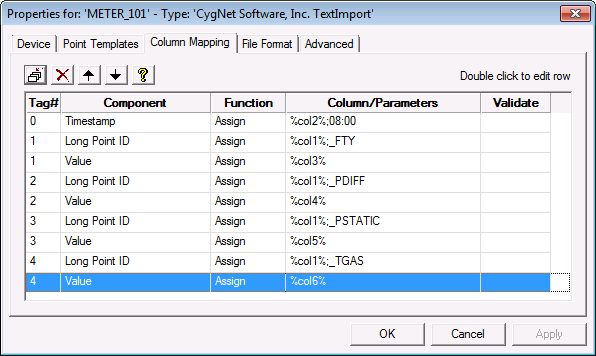
The Column Mapping page contains the following buttons:
| Button | Tooltip | Action |
|---|---|---|
|
|
Add Row (after) |
Add a new row to the column mapping. New rows are inserted after the currently selected row and will persist the selections made in the row above. The order of the components in the table is not important; however adding components in logical groups can make it easier to manage. The source file is processed top to bottom. |
|
|
Delete row |
Delete the selected row. |
|
|
Move row up |
Move the selected row up. |
|
|
Move row down |
Move the selected row down. |
|
|
Hints |
Access Column Definition Hints and examples. |


To edit any table entry, double-click the row to open the Column Mapping dialog box where you can enter data for the row, build column/parameters, define field validation (optional), and define how to handle blank or empty columns.
Notes:
If a component value is fully contained in a column in the source file, simply map to the column in which the value resides. For example, if the "Facility ID" is in column 1 of the source file, set the Column/Parameters to "1" for the "Point Facility Id" component.
You can also specify data for components that aren't in the source file. For example, if you want to enable history report, include the component "pnt_ReportVhs" in the mapping and enter "Y" in the Column/Parameters field.
The Component Table contains the following columns:
| Column | Description |
|---|---|
|
Tag # |
Groups columns in the source file to the CygNet components.
|
|
Component |
Indicates the CygNet component being constructed. See PNT Editor topics and Facility Attributes for descriptions of available components. |
|
Function |
Assigns the configured parameters to the specified property. Options include Assign, Adjust Time, LookupFacility, SetBit, and Toggle. See Column Mapping below for a description of these functions. |
|
Column/Parameters |
Defines where the data of the component resides. This can be a column in the source file, text, or a concatenation of column and text. |
|
Validate |
Indicates what validation to perform on the component. Edit by double-clicking the row. |
Column Mapping
Use the Column Mapping dialog box to enter data for the row, build columns/parameters, define field validation (optional), and define how to handle blank or empty columns.
|
Column Mapping |
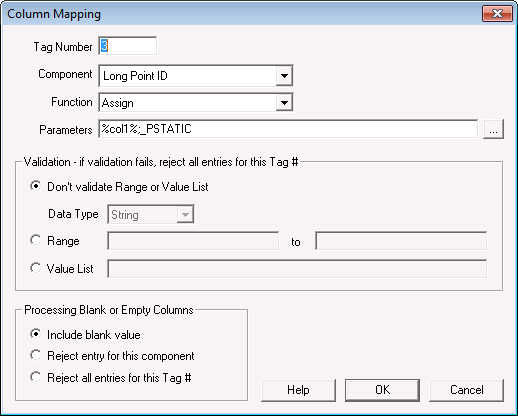
To Map Columns
- Click the Add Row button on the Column Mapping page to open the Column Mapping dialog box.
- Type the Tag Number.
- Select the Component field from the drop-down menu.
- Select the appropriate Function. The options depend on the type of component selected and include Assign, AdjustTime, LookupFacility, SetBits, and Toggle.
- Build the desired Parameters with the Parameters for <> Function dialog box. See Functions and
- Parameters below.
- Define field validation options. See Import Validation below.
- Select options for processing blank or empty columns. See Processing Blank or Empty Columns below.
- Click OK.
Note: See Filtering Data for information about limiting the data imported into the system.
Functions and Parameters
There are five functions available fro selection. Each function and its associated parameters is described below.
Assign Function
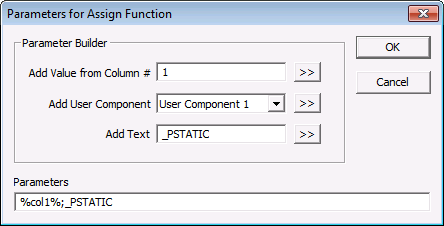
The parameters for the Assign function include a semicolon separated list of components. A component can be a Column Number, a User Component, or a literal Text value. Assign is the default function when reading older import devices and is available for all properties.
- Build the Assign function by configuring the desired parameters.
- Click
 to move each parameter to the Parameters box in the desired order.
 - Click OK.
- The parameters will display on the Parameters box on the Column Mapping dialog box.
|
Parameters for Assign Function |
Adjust Date/Time Function
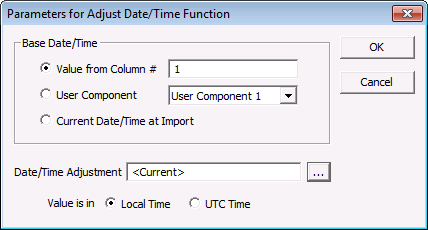
The AdjustTime function performs standard CygNet time adjustments. Its parameters include a Base Date/Time, a Date/Time Adjustment, and a control to indicate whether the Time Value represents a Local or UTC Time. The Base Date/Time parameter can be a Column Number, a User Component, or a literal Text value. The parameters are stored as a semicolon separated list of key-value pairs. The AdjustTime function is available with the "Timestamp" and User Component properties.
- Build the AdjustTime function by configuring the desired Base Date/Time parameters.
- Click the browse button to select date and time for the Date/Time Adjustment. Click OK.
- Check the appropriate Time Value: Local Time or UDC Time.
- Click OK.
- The parameters will display on the Parameters box on the Column Mapping dialog box.
|
Parameters for Adjust Date/Time Function |
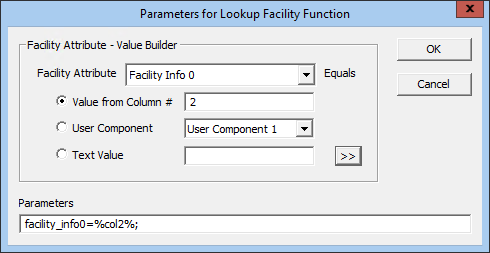
Lookup Facility Function
The LookupFacility function looks up a facility ID based on one or more Facility Attributes. The value of each Facility Attribute can be a Column Number, a User Component, or a literal Text value. The parameters are stored as a semicolon separated list of key-value pairs. The LookupFacility function is available with the "Facility ID" and User Component properties. The LookupFacility function will only work if it resolves to exactly one facility ID.
- Build the LookupFacility function by configuring the desired parameters.
- Select the Facility Attribute from the drop-down menu.
- Configure the parameters.
- Click to move each parameter to the Parameters box in the desired order.
- Click OK.
- The parameters will display on the Parameters box on the Column Mapping dialog box.
|
Parameters for Lookup Facility Function |
SetBit Function
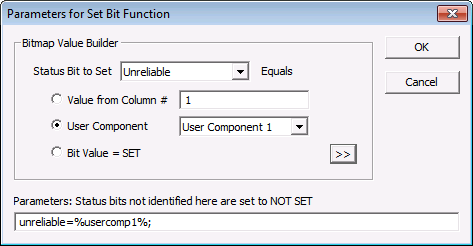
The SetBit function is used to set one or more bits of the User Status or Extended Status in a real-time record. The bit value can be a Column Number, a User Component or a literal Text value representing the SET state ("Y", "Yes", "T", "True", "1", "SET"). The parameters are stored as a semicolon separated list of key-value pairs. The SetBit function is available only with the "Status" and "User Status" properties.
- Build the SetBit function by configuring the desired parameters.
- Select the Status Bit to Set from the drop-down menu.
- Configure the parameters.
- Click to move each parameter to the Parameters box in the desired order.
- Click OK.
- The parameters will display on the Parameters box on the Column Mapping dialog box.
|
Parameters for Set Bit Function |
Toggle Function
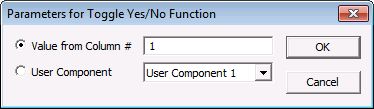
The Toggle function is used to switch the value of a Yes/No component. The component can be a Column Number or a User Component. The Toggle function is available with Yes/No and User Component properties.
- Build the Toggle Yes/No function by configuring the desired parameters.
- Click OK.
- The parameters will display on the Parameters box on the Column Mapping dialog box.
|
Parameters for Toggle Yes/No Function |
Parameter Building
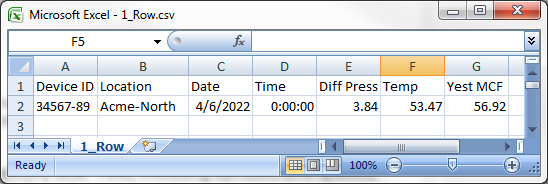
If the data for the component is contained in more than one column, a parameter can be built to combine the columns. For example, if the source file contains the date in column 3 and the time in column 4, join these columns since CygNet stores the date/time in one field.
Parameters can be used to combine items (columns, text, and spaces) or to specify text. A semicolon must be used to delimit formula components. The following table gives some examples of combined parameters for the following source file.
| Column/Parameters | Description | Results |
|---|---|---|
|
%col1% |
Use the value in column 1 of the source file. |
34567-89 |
|
%col1%;%col2% |
Join the values in columns 1 and 2. |
34567-89Acme-North |
|
%col3%; ;%col4% |
Join the values in columns 3 and 4, with a space between the values. |
4/6/2022 0:00:00 |
|
%col1%;_;%col2% |
Join the values in columns 1 and 2, with an underscore between the values. |
34567-89_Acme-North |
|
%col2%;_VGY |
Join the value of column 2 with the text _VGY. |
Acme-North_VGY |
|
_PDIFF |
Use the text _PDIFF; get nothing from the source file. |
_PDIFF |
|
.csv Example |
Import Validation
Values read from the source file may be validated; if validation fails for any attribute of a tag, the import of the tag fails and no values are changed.
Validation options are set on the Column Mapping dialog box, which is accessed by double-clicking on any field in the table on the Column Mapping page.
| Parameter | Description |
|---|---|
|
Don't validate Range or Value List |
Will not perform validation. This is the default setting. |
|
Data Type |
Limits appropriate ranges of values based on type. Choices are: String, Number, or Date/Time. |
|
Range |
Checks that the value is within the specified range. Range values must correspond to the Data Type selected. For example, the range A to E is not a valid entry if the data type is set to Numeric, but it is acceptable if the data type is set to String. If a source value is out of range the tag will be ignored and will not be changed. Wildcards cannot be used. |
|
Value List |
Checks that the value matches one of the specified valid values. Value list must correspond to the Data Type selected. For example, the value list A;B is not a valid entry if the data type is set to Numeric, but it is acceptable if the data type is set to String. Valid format is each acceptable value separated by a semicolon (;). If a source value does not match the value list criteria the tag will be ignored and will not be changed. Wildcards cannot be used. |
Processing Blank or Empty Columns
The Text Import driver provides a method for handling missing data in the source file. See Sample Source File and Import File Format for an example of a source file with missing data.
| Parameter | Description |
|---|---|
|
Include blank value |
Sets the tag value to blank if the source column entry is empty. If using a template or updating an existing tag, the import will overwrite the existing value with a blank entry. This is the default setting. |
|
Reject entry for this component |
Will not change the tag value even if the source column entry is empty. If using a template or updating an existing tab, the import will not overwrite the existing value. |
|
Reject all entries for this Tag # |
Will ignore whole tag/row of source data if one of its column entries is empty. |


